Saira Imran
How to Reset Router: Soft Reset vs Factory Reset (2026)
I have troubleshot hundreds of router problems over the years, and nine times out of ten, the fix takes under two minutes. The mistake most people make is jumping straight to a factory reset when a simple 30-second restart would have solved it. But there are two very different types of reset, and using the wrong one can erase all your settings and leave you without internet for hours.
This guide explains both clearly, before walking you through the exact steps for the most common routers in Pakistan.
What is the difference between a Restart and a Factory Reset?
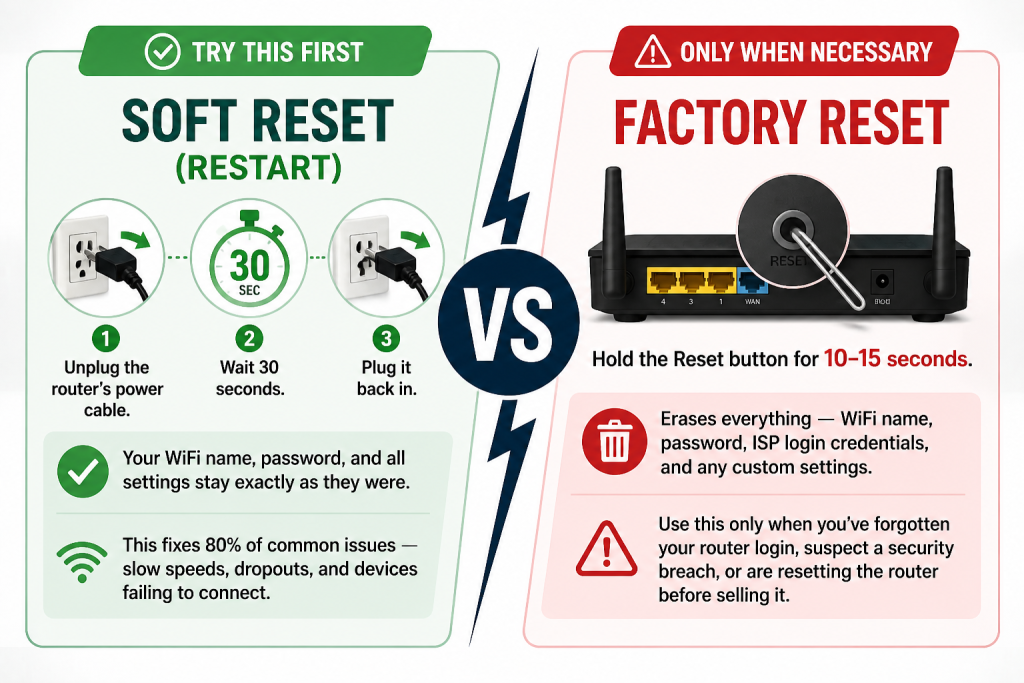
A router restart (soft reset) powers the device off and back on. Your WiFi name, password, and all settings remain unchanged. A factory reset erases all custom settings and restores the router to its original factory state, requiring full reconfiguration. For most everyday internet problems, a restart is all you need. A factory reset is only necessary when you have forgotten your login credentials, suspect a security breach, or are resetting the router before selling it.
Soft Reset (Restart)
Try this first. Unplug the router’s power cable. Wait 30 seconds. Plug it back in. That’s it.
Your WiFi name, password, and all settings stay exactly as they were. This fixes 80% of common issues, such as slow speeds, dropouts, and devices failing to connect.
Factory Reset
Factory reset only when it is necessary. Hold the Reset button for 10–15 seconds. Erases everything: WiFi name, password, ISP login credentials, and any custom settings.
Use this only when you’ve forgotten your router login, suspect a security breach, or are resetting the router before selling it.
Before You Do a Factory Reset: Write down your current WiFi name (SSID) and password. Also note your ISP login credentials if your provider uses PPPoE (PTCL, Nayatel, and some local ISPs require this). Without these details, you may not be able to reconnect to the internet after the reset.
When Should You Reset Your Router?
A router is essentially a small computer running 24 hours a day. According to Netgear’s technical support data, over 60% of reported WiFi issues are resolved by a simple restart, no factory reset needed. Like any computer, routers slow down and need a fresh start. The question is not just whether to reset, but which type of reset to use and whether the problem even needs a reset at all.
| Problem You Are Facing | What To Do |
|---|---|
| Slow internet or sudden speed drops | Soft reset (restart): almost always fixes this |
| Devices not connecting to WiFi | Soft reset first, then check device settings |
| Forgot WiFi password | Factory reset, then set a new password |
| Forgot router login (192.168.x.x) | Factory reset restores the default login |
| Selling or giving away the router | Factory reset clears all personal data |
| Changing internet provider | Factory reset removes old ISP credentials |
| No internet despite good settings and a restart | Don’t reset problem is on the device, not the router |
| No internet despite good settings and restart | Don’t reset. The problem is on the device, not the router |
How to Do a Soft Reset (Restart)?
A soft reset takes less than two minutes and requires no technical knowledge. If your internet is slow or unstable, start here before attempting anything else.
1. Unplug the router’s power cable from the wall socket
Do not use the router’s power button; instead, physically pull the cable out of the socket or the back of the router. This ensures a complete power cycle.
2. Wait 30 full seconds
This allows the router’s memory to fully clear. Waiting less than 10 seconds often means the capacitors haven’t discharged, and the restart is incomplete.
3. Plug it back in and wait 2 minutes
The router takes about 90 seconds to fully boot. Wait until all the indicator lights stabilize before testing your connection. The Internet or WAN light should turn solid (green or white on most models).
If your internet is still slow or unstable after a soft reset, try restarting both the router and the modem together, modem first, then router, with a 30-second gap between them. If the problem persists after that, proceed to the factory reset below or call your ISP.
How to Do a Factory Reset?
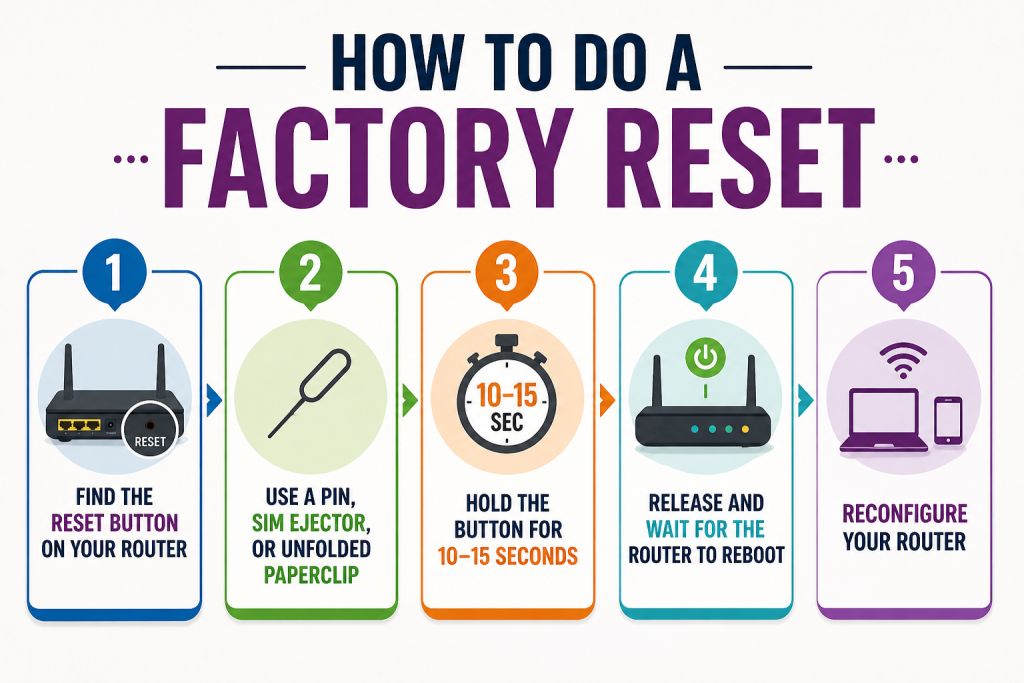
A factory reset wipes your router completely back to its original state, the same as when it came out of the box. Follow these steps carefully.
1. Find the Reset button on your router
Look at the back or bottom of the router. The Reset button is inside a small pinhole, which prevents accidental presses. It is usually labelled “RESET” or “RST.”
2. Use a pin, SIM ejector, or unfolded paperclip
Insert the pointed end into the pinhole. Make sure the router is powered on before pressing, a factory reset only works when the device is running.
3. Hold the button for 10–15 seconds
How long to hold the reset button on the router? This is the main question people want to know. Hold the Reset button for 10 seconds on most routers, or 15 seconds for PTCL’s Huawei HG8245H. Release only when you see the router lights flash or turn off. Releasing too early results in an incomplete reset.
4. Release and wait for the router to reboot
The router will restart automatically. This takes about 2 minutes. When the Power light turns solid, and the WiFi light comes back on, the reset is complete. Your router’s default WiFi name and password are now printed on the sticker at the bottom of the device.
5. Reconfigure your router
Connect to the default WiFi network using the credentials on the sticker, then open your browser and go to the router’s admin page (see brand-specific addresses below) to set a new WiFi name, password, and restore any ISP credentials your provider requires.
Brand-Specific Reset Steps for Common Routers in Pakistan
Different router brands have slightly different reset procedures. Here are the exact steps for the four most common routers in Pakistani homes.
TP-Link (TL-WR740N, TL-WR841N, Archer series) Most Common
Hold the Reset pinhole button for 10 seconds while the router is powered on. The lights will blink rapidly, then the router will restart. After reboot, the default WiFi name is TP-LINK_XXXX, and the default password is printed on the bottom sticker. Admin panel: 192.168.0.1 · Login: admin/admin
Huawei HG8245H / HG8145V (PTCL Fiber) PTCL Standard
This is the white fiber router issued by PTCL. The Reset button is on the back panel. Hold it for 15 seconds — longer than most routers. The LOS light will flash red during the reset, then stabilize. After reboot, the default WiFi credentials are on the bottom sticker. Admin panel: 192.168.100.1 · Default login: admin/admin
Important for PTCL users: After the reset, you will need your PPPoE username and password (issued by PTCL when you first set up the connection) to restore internet access. Contact PTCL 1218 if you don’t have these.
ZTE F660 / F680 (Common with local ISPs)
Hold the Reset pinhole button for 10 seconds. All indicator lights will briefly turn off, then come back on as the router reboots. Admin panel: 192.168.1.1 · Default login: admin/admin or user/user. Check the sticker on your specific model for the exact credentials.
Netgear (R-series, Nighthawk)
Hold the Reset pinhole button for 7 seconds until the Power LED blinks amber. Alternatively, use the Netgear app: go to Router Settings → Backup Settings → Erase. Admin panel: 192.168.1.1 or routerlogin.net · Default login: admin/password.
How to Reset via the Router’s Web Interface (No Pin Needed)?
If you still know your router’s admin password, you can perform a factory reset through the browser without touching the physical Reset button. This method is safer because it gives you a chance to save your settings first.
Connect your phone or laptop to the router’s WiFi. Open any browser and type your router’s admin address — usually 192.168.0.1 or 192.168.1.1. Log in with your admin credentials, then navigate to Settings → System Tools → Factory Defaults (the menu name varies by brand). Click Restore or Reset and confirm. The router will reboot automatically.
Pro Tip — Save Your Settings Before Resetting: In the same admin panel, look for a Backup Settings or Export Configuration option before clicking Reset. This downloads a file containing all your current settings. If anything goes wrong after the reset, you can restore this file and be back to normal in seconds.
What to Do After a Factory Reset?
The reset itself takes two minutes. Setting up your router properly afterward takes another ten. Do not skip these steps — a poorly configured router is both slow and insecure.
Start by connecting to your router’s default WiFi network (credentials on the sticker) and opening the admin panel in your browser. The first thing to change is your WiFi name and password. Pick a name that doesn’t reveal your router brand (this discourages targeted attacks) and use a password with at least 12 characters — a mix of letters, numbers, and one symbol.
Next, check the Security settings and make sure your WiFi is using WPA2 or WPA3 encryption. As cybersecurity researcher Bruce Schneier has noted, “using outdated protocols like WEP is the equivalent of leaving your front door unlocked.” If your dropdown still shows WEP or WPA, change it immediately. These protocols can be cracked in under two minutes with freely available tools.
If your ISP requires a PPPoE connection (common with PTCL and some fiber providers), go to WAN Settings and re-enter your PPPoE username and password. Without this, your router will show WiFi activity but no internet access. PTCL users can call 1218 to retrieve their PPPoE credentials if they’ve lost them.
Finally, check for a firmware update. Most router admin panels have a Firmware Update or Software Update option under Settings. Install any available updates before reconnecting your devices — firmware updates fix security vulnerabilities and performance bugs.
After-Reset Checklist:
Change your WiFi name (don’t leave it as “TP-LINK_1234”) · Set a strong password (12+ characters) · Enable WPA2 or WPA3 security · Enter PPPoE credentials if your ISP requires them · Check for firmware updates · Reconnect all devices with the new password.
When to Reset vs When to Call Your ISP
A factory reset fixes problems inside your router. It cannot fix problems outside it, such as a damaged cable from your ISP, an outage in your area, or a signal issue at the exchange. Resetting your router for these problems wastes your time and forces you to reconfigure everything for no reason.
A simple test: Connect your laptop to the router using an Ethernet cable. If the wired connection also shows no internet, the problem is almost certainly coming from your ISP’s side, not the router. In this case, call your provider directly. For PTCL, call 1218. For most other ISPs, the helpline number is on your monthly bill.
Do Not Factory Reset If: Your internet was working fine yesterday and stopped today with no changes. This is almost always an ISP outage or a loose cable at the junction box outside your home — neither of which a router reset can fix. Call your ISP first and save yourself the reconfiguration hassle.
Common Mistakes to Avoid
- Resetting when you only needed to restart: A factory reset should be a last resort, not a first response. Always try unplugging the router for 30 seconds first. If that doesn’t fix the problem, then consider a factory reset.
- Resetting without noting your ISP credentials: This is the most painful mistake. Once you factory reset, the router has no ISP details and cannot connect to the internet — even if the hardware is working perfectly. Write down your PPPoE username and password before every factory reset.
- Setting a weak password after the reset: After a factory reset, many people reuse the default password or something simple like their phone number. This makes your network easy to crack. Use a password that is at least 12 characters and includes a number and a symbol.
- Resetting too frequently: Repeated factory resets do not improve router performance over time. If you find yourself resetting your router every few weeks, the real problem is either a hardware fault in the router or a recurring issue with your ISP’s signal quality — both of which need professional attention, not more resets.
Final Thoughts
Knowing how to reset your router is a genuinely useful skill, but the most important thing to know is which type of reset to use and when. For 80% of everyday internet problems, a simple 30-second soft reset (unplugging and replugging the router) is all you need. The factory reset is a more powerful tool that solves specific problems but requires a few minutes of reconfiguration afterward.
If you are a PTCL user in Pakistan, keep your PPPoE credentials somewhere safe. According to PTA (Pakistan Telecommunication Authority) consumer guidelines, ISP login credentials are the single most common piece of information households lose during a router change.
PTCL’s helpline 1218 can recover your credentials free of charge, but the process takes 24–48 hours during peak times.
This article was written by Saira Imran, Technology Writer at Ajj ki Baat · Reviewed for accuracy August 2025 · Last updated May 2026·
FAQs
Restarting (soft reset) simply powers the router off and back on. All your settings, WiFi name, password, and ISP credentials stay the same. Resetting (factory reset) erases all settings and restores the router to its original factory state. Always try restarting first before doing a factory reset.
Most routers require 10 seconds. PTCL’s Huawei HG8245H typically needs 15 seconds. Hold until you see the lights flash or turn off, which signals the reset has triggered.
If your ISP uses a standard connection, the router will reconnect automatically using default settings. However, if your ISP requires PPPoE credentials (common with PTCL and fiber providers), you’ll need to re-enter your username and password in the router’s WAN settings before internet access is restored.
First, check if your ISP requires PPPoE credentials and re-enter them in the router’s WAN settings. If you’ve done this and the internet still doesn’t work, connect a laptop via Ethernet cable directly to the router. If that also shows no internet, the problem is on your ISP’s side — call their helpline. For PTCL, call 1218.
Yes, completely safe. A factory reset cannot damage your router’s hardware. The only risk is losing your settings, which is why noting your WiFi name, password, and ISP credentials beforehand is important.
You should never need to factory reset your router regularly. A monthly soft reset (simple restart) is healthy maintenance that clears memory and refreshes the connection.
Call PTCL customer support on 1218. Give them your account number (on your monthly bill), and they can provide or reset your PPPoE credentials.