Saira Imran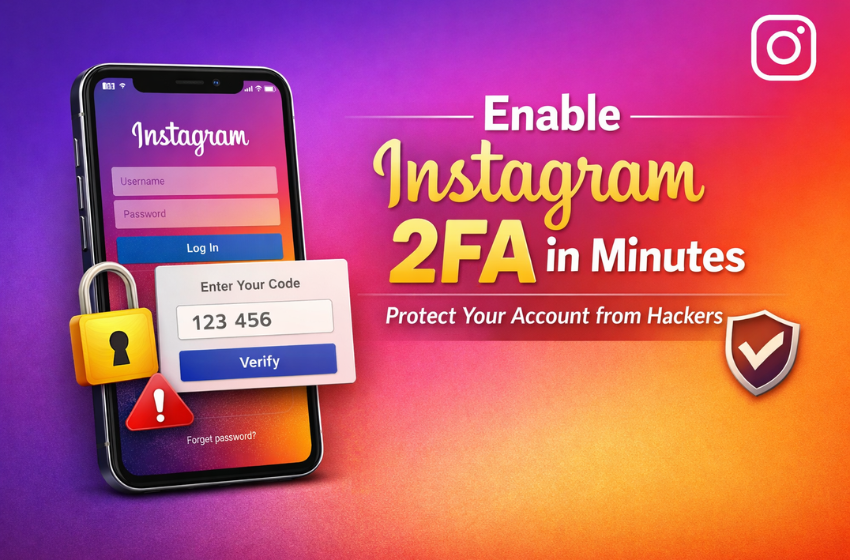
How to Enable Two-Factor Authentication on Instagram
Two-Factor Authentication (2FA) adds a second security step to your Instagram login (a code from your phone) that makes it much harder for hackers to break in. In this guide, learn how to enable Two-Factor Authentication on Instagram.
You will also learn what 2FA is, why it’s important, and exactly how to set it up on Instagram (both mobile and web) with step-by-step instructions. We compare SMS vs. authenticator apps (in a table), highlight common mistakes to avoid, and share real experiences (like losing an account by forgetting a password) to stress practical tips.
You’ll also get troubleshooting advice, a locked-out recovery flowchart, and an action checklist (e.g., saving backup codes safely) to keep your account secure.
What is Two-Factor Authentication (2FA)?
Two-Factor Authentication (2FA) is a security measure that requires two forms of verification to log into an account. In Instagram’s case, it means you need something you know (your password) and something you have (a code from your phone or security key).
In practice, after entering your password on Instagram, you’ll be prompted for an extra six-digit code sent to your device. This drastically reduces the risk of account takeover: even if an attacker guesses or steals your password, they still cannot log in without that second code. As Malwarebytes puts it, “Even the strongest password isn’t enough on its own” – 2FA ensures a thief needs that second factor to break in.
Instagram’s official 2FA adds a small extra step, requiring a code whenever you log in from an unrecognized device (blue lock icon added).

Enabling 2FA means logins need two factors – your password and a second code (something on your phone). This makes it far harder for hackers to access your account.
Instagram offers multiple 2FA options: text message (SMS), an authenticator app (recommended), or even a physical security key. In this guide, we focus on SMS vs. authenticator apps (the most common choices).
Read Also: How to Recover a Hacked Instagram Account Safely and Quickly
Why Enable 2FA on Instagram?
Without 2FA, anyone who learns your password can log in to your account. In our connected world, that’s more common than you think. For example, in late 2025, Instagram/Meta warned users to enable 2FA to protect accounts.
A tech news report on Instagram hacks emphasizes several security steps: it lists enabling 2FA first and notes that Instagram will alert you to any unfamiliar login attempt once 2FA is on. In other words, if someone tries to access your account, you’ll immediately get a notification and can block them.
My own experience shows how critical this is. Last year, I forgot my password and tried to recover my Instagram account by phone – I spent 30 minutes on recovery, trying three times, but it didn’t work. Because I never saved backup codes or had an alternate login method, I permanently lost access. It was a painful lesson: a single mistake (a forgotten password) turned into losing the account forever. I share this so you don’t repeat it: enable 2FA before a disaster strikes.
In short, 2FA is one of the best protections against hacking. A Microsoft study found that “more than 99.9% of compromised accounts don’t have multi-factor authentication enabled”. In other words, almost every breached account lacked 2FA. By turning it on, you join the tiny fraction that stays secure.
Additionally, Instagram emphasizes other best practices alongside 2FA: keep your phone number and email up to date (they are used for recovery), and beware of phishing (Instagram will never DM you a password reset link). But enabling 2FA is a great first step that dramatically boosts your security.
Step-by-Step: Enabling 2FA on Instagram
On Mobile (Android or iPhone/iPad)
- Open Instagram and go to your Profile. Tap your profile picture at the bottom right.
- Open Settings and Security. Tap the menu icon (☰) at top right, then choose Accounts Center (at bottom) → Password and Security.
- Choose Two-Factor Authentication. Tap Two-factor authentication, then pick the Instagram account you’re securing.
- Select a 2FA method. Instagram will present options:
- Authenticator App (recommended) – You’ll link an app like Google Authenticator or Authy.
- Text Message (SMS) – Instagram will send a code to your phone.
- (Sometimes WhatsApp is shown after SMS is enabled.)
- If using an Authenticator app: Instagram will display a QR code or setup key. Open your authenticator app (e.g., Google Authenticator, Authy, Microsoft Authenticator), scan the QR code (or paste the key), then enter the generated code back in Instagram to confirm.
- If using SMS: Enter your phone number (if not already on file). Instagram will send a 6-digit code via text. Enter that code to verify.
- Finish the setup. Follow any on-screen prompts. Once confirmed, 2FA is enabled for that account.
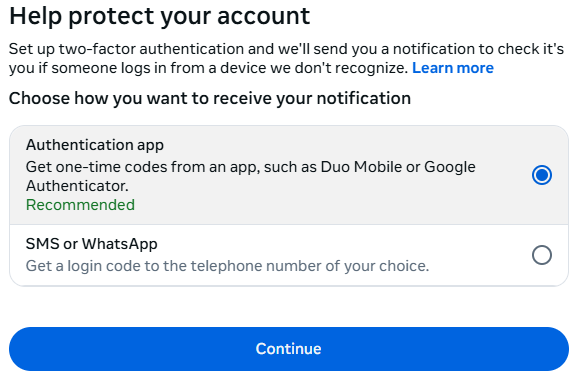
In Instagram’s security settings, select Authentication App (for Google Authenticator, Authy, etc.) or Text Message (SMS) as your second-factor method. Authenticator apps are recommended for stronger security
Tip: Immediately after setup, Instagram will display backup codes. These are one-time-use codes you should save RIGHT AWAY. (They let you log in if your phone is lost or you can’t get a 2FA code.) Instagram even suggests you “copy the codes to your clipboard, take a screenshot of them, or save them in some other way”. We’ll cover safe storage of these codes in the checklist below.
On the Web (Instagram.com)
- Log in to Instagram.com. On a computer or mobile browser, go to instagram.com and sign in.
- Go to Accounts Center. Click your profile icon (or the menu) and choose Accounts Center → Password and security (this is where Instagram & Facebook settings are managed together).
- Open Two-Factor Authentication. Click Two-factor authentication, then select your Instagram account.
- Choose your method. The web interface mirrors the mobile steps. Pick Authentication App or Text Message, then follow the on-screen prompts (scan a QR code or receive an SMS code) to complete the setup.
- Save backup codes (as above) and confirm 2FA is on.
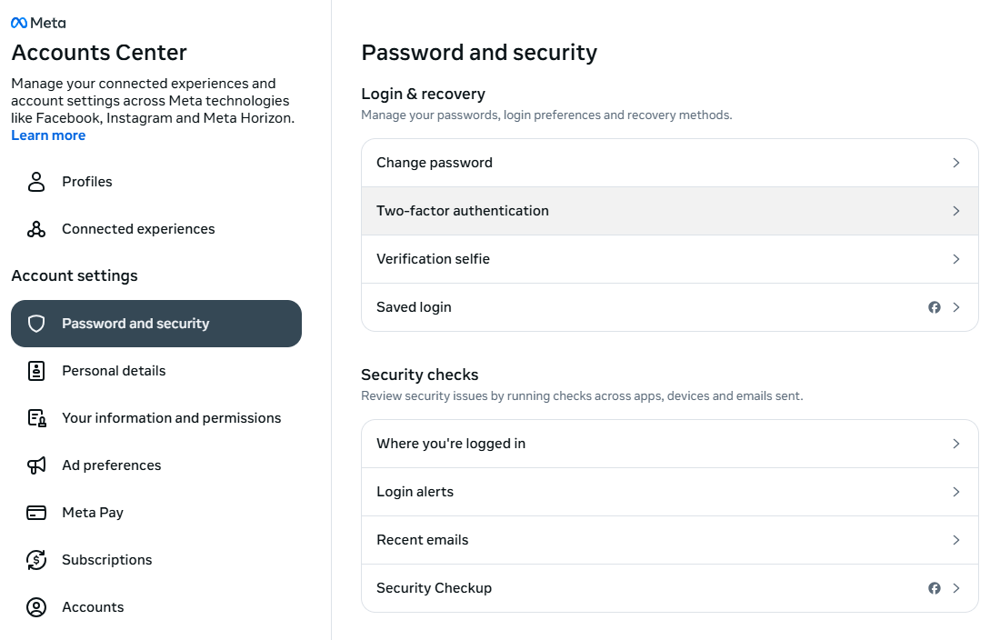
Instagram’s web Accounts Center. Click Password and security → Two-factor authentication, then choose a method to get your code. Even on the web, Instagram emphasizes using an Authenticator app for added security.
These official steps are straightforward, but some beginners get stuck on finding settings or choosing methods. If you feel confused, remember: Accounts Center is where Instagram moved many security settings. Follow the menu prompts carefully. And if in doubt, check Instagram’s help (or use this guide as your walkthrough).
SMS vs. Authenticator App: A Comparison
Once you tap to select a 2FA method, you must decide between Text message (SMS) or an Authenticator app. Both will work, but they differ in security and convenience. Experts strongly advise using an authenticator app whenever possible. SMS codes are easy to use but have known vulnerabilities. Below is a summary comparison:
| Aspect | SMS (Text Message) | Authenticator App (e.g., Google Auth, Authy) |
| How it works | Code sent via mobile text (carrier network). | An app on your phone generates a new code every 30 seconds. |
| Security | Vulnerable to SIM swapping and network attacks. SMS is plain text and can be intercepted. | Codes are generated on your device, never sent over a network. Immune to SIM-swaps. |
| Example Risks | If an attacker hijacks your phone number, they get all your SMS codes. (E.g. Jack Dorsey’s Twitter was hacked this way.) | An attacker with your number still can’t get your app codes. Phishing or malware could try to steal codes, but they expire quickly (30s). |
| Convenience | Simple: no extra apps needed, works on any phone. Code arrives by SMS. | Requires installing/scanning an app. Once set up, it works offline (no network needed). |
| Setup | Very easy: Instagram sends a code to your phone number. | A bit more setup: install the authenticator app, scan the QR code, or enter the key. |
| Recovery if the phone is lost | If you keep the same number on a new SIM, SMS still works. But SIM-swaps can break security. | If your phone is lost, you need backup codes or an app backup to recover access. |
| Expert advice | Not recommended as sole 2FA. U.S. agencies (FBI/CISA) warn: “Do not use SMS as a second factor” because it can be read if intercepted. | Recommended. More secure. Even Microsoft research notes that nearly all compromised accounts lacked MFA, and using an app greatly reduces breach risk. |
Both methods require effort, but the security difference is real. SMS-based 2FA is better than none, but beware: it’s susceptible to sophisticated attacks like SIM-swapping and SS7 network exploits.
In contrast, authenticator apps generate codes on-device, never transmitted over carriers. If an attacker hijacks your phone number, they won’t get the app’s codes. For Instagram and other important accounts, using an authenticator app (or a hardware key) is generally safer.
Common Troubleshooting
- Not receiving the SMS code? First, ensure your phone has a good signal, and the number is correct. Sometimes carriers delay or block unfamiliar messages. Check that you haven’t blocked short codes (Instagram uses 32665). If SMS fails repeatedly, switch to an authenticator app instead. Apps don’t rely on networks, so you won’t face delays.
- Authenticator app issues (no code or wrong code)? Make sure your phone’s clock is set to automatic/synced time. TOTP codes depend on the correct time. If codes still don’t work, try reinstalling the authenticator app or choose “enter key manually” during setup and type the setup key on a new app install.
- Forgot your password (and 2FA code)? If you still have access to your email or phone number, try the regular password-reset flow on Instagram. Instagram will email or text a reset link if your contact info is up to date. But if you lose both password and 2FA access (e.g., you lost your phone and didn’t save backup codes), recovery can be difficult. In that case, you may need to follow Instagram’s hacked-account recovery process.
- Seeing many “Login Request” alerts? This is Instagram’s way of notifying you. If you see a login attempt you didn’t initiate (a notification with a “Deny” option), deny it immediately. These alerts mean someone else tried to access your account, and 2FA prevented them.
By preparing ahead (using a strong password and saving backup codes), most of these issues can be avoided. Speaking of which…
Locked Out? Decision Guide & Recovery Options
If you lose access (forgot your password or lost your phone), here’s a quick decision flow:
flowchart LR
A[Login Attempt] –> B{Enter Password}
B –> C{2FA On?}
C — No –> Z1[Login (no 2FA)]
C — Yes –> D{Have 2FA code?}
D — Yes –> E[Enter code → Success]
D — No –> F{Have backup codes?}
F — Yes –> G[Use backup code → Success]
F — No –> H[Phone/Email recovery?]
H — Yes –> I[Reset via email/SMS → Success]
H — No –> J[Contact Instagram Support]
I –> Z1
G –> Z1
E –> Z1
J –> Z2[Wait (recovery uncertain)]
Z1[Access Restored]
Z2[Locked Out]
- Path explanations if:
- You remember your password and 2FA code (or backup code), and login succeeds.
- You have no code, but do have backup codes (saved earlier). Use one of those to log in. This is the simplest fallback.
- If you have no code and no backup, but still have access to your email or phone number, try Instagram’s standard reset (they send a reset link or SMS). Note: this works only if Instagram can verify you by email/phone. Keep those updated.
- If none of the above works, you must contact Instagram support (the “I can’t log in” help form, or report your account as hacked). This route can be slow and uncertain – users report having to submit personal details (even a photo ID) and wait days or weeks to get a reset link. There’s no guaranteed fix.
Below is a comparison of recovery methods:
| Recovery Method | How It Works | Pros/Cons |
| Backup Codes | Use one of the 5–10 codes Instagram gave you when you enabled 2FA. | Pros: Instant, works even without a phone or internet. Cons: Only if you saved them ahead of time; each code is one-time use. |
| Password Reset (Email/SMS) | Instagram sends a link/code to your registered email or phone if you click “Forgot password.” (Requires you still have that email/SMS access.) | Pros: Easy if email/phone is current. Cons: Won’t work if the hacker changes them or if you lose that access. Keeping them updated is crucial. |
| Authenticator App | If you’ve set up your authenticator app on another device (or backed up its data), you can get a code there. | Pros: Secure if you took steps (like Authy’s multi-device sync). Cons: If you only had it on one lost phone and no backup, you lose this option. |
| Instagram Support | Submit a recovery appeal via Instagram’s Help Center. You may need to verify your identity (e.g., photo ID, email, phone) | Pros: Last resort if all else fails. Cons: Slow (days to weeks), no guarantee. One user reported 1.5+ weeks of form submissions before regaining access. |
If you ever find yourself locked out despite 2FA being on, act quickly: use any backup code or recovery email you have, and respond promptly to any Instagram emails.
As one user recounts, perseverance paid off – they filled out all forms, provided ID, and after weeks got a recovery link. But it was a nightmare to endure. The best solution is to avoid that situation entirely by planning (see checklist below).
Password & Backup Code Best Practices
Your first line of defense is a strong password. Use a mix of uppercase, lowercase, numbers, and symbols, and make it unique to Instagram. (Surveys show 65% of people reuse passwords across sites – don’t be one of them.)
A good practice is a random passphrase or a password manager-generated string. Store it securely (a password manager or a locked note).
After setting your password, treat your 2FA backup codes like gold. Backup codes are random one-time passwords – Instagram often gives 5–10 codes in a list. Store them somewhere safe offline.
Do not just leave them on your phone’s photo roll or an email inbox. Instead, copy them into a password manager or write them in a protected notebook. As a security blog advises, “Use a trusted password manager or store [backup codes] in a secure offline location—never in plaintext on your desktop or inbox”.
Instagram even suggests taking a screenshot or printing them, but remember: if your phone is stolen, that screenshot could be lost too. A better approach is an encrypted vault (like 1Password) or a physically secure spot (like a home safe or locked diary).
Additionally, enable any extra recovery features Instagram offers. For example, you can add multiple phone numbers or set up Facebook account recovery (Meta’s “Accounts Center” ties them together). Always keep your contact info up to date in your profile – that way, if something goes wrong, Instagram can reach you via email or SMS to assist.
Checklist: Steps to Secure Your Instagram Account
- ✅ Set a strong, unique password. Use a mix of letters, numbers, symbols (e.g., “S3cureP@ss!”). Do NOT reuse passwords from other sites. Consider using a password manager to generate and store it.
- ✅ Enable Two-Factor Authentication (2FA). Go to Settings → Accounts Center → Password and security → Two-factor authentication, and turn it on.
- ✅ Use an authenticator app if possible. It’s more secure than SMS. If you’re new to this, SMS is acceptable as a first step, but plan to switch to an app soon.
- ✅ Save your backup codes immediately. When Instagram shows you the recovery codes, do not skip this step. Copy them into a password manager or write them down securely. These codes can log you in if you lose your phone.
- ✅ Keep your contact info current. Make sure your email and phone number in your profile are ones you control. This lets you reset your password via email/SMS if needed.
- ✅ Log out and test. After setting 2FA, log out and try logging back in to ensure everything works as expected (check that you receive codes).
- ✅ Watch for phishing. Remember that Instagram will never DM you asking for passwords or codes. If you get an unsolicited “login” message or email, ignore it and change your password immediately.
- ✅ Backup your authenticator (optional). Some apps let you export or back up your tokens (e.g., Authy can sync to multiple devices). Use these features to avoid being locked out if your phone is lost.
Following this checklist will greatly reduce your risk. The extra time it takes (a few minutes now) is far less than the frustration of account recovery or hacking down the line.
FAQs
Yes. Instagram accounts get targeted frequently by bots and phishers. Enabling 2FA means “even the strongest password isn’t enough” for thieves – they must also have your phone or code. In fact, research shows virtually all hacked accounts lacked 2FA. It’s a quick step that greatly improves security.
SMS 2FA is better than nothing, but it has flaws. Security agencies like CISA and the FBI now strongly advise against SMS-based 2FA, because text messages can be intercepted.
We recommend using an authenticator app for critical accounts. If SMS is your only option now, use it, but consider moving to an app later.
First, use one of your backup codes (that you saved) on the 2FA prompt – this bypasses the need for a phone. If you didn’t save any, try password-reset via email/SMS (if you still control those).
If that fails, you must use Instagram’s support form (report as hacked). Recovery via support can be slow and unpredictable (one user waited weeks), so backup codes are strongly recommended.
Go to Settings → Accounts Center → Password and security → Two-factor authentication → Additional Methods (on mobile) → Backup Codes. Instagram will show you a fresh set of codes. Copy, screenshot, or securely save them. Remember, each code can be used only once, so regenerate them if you use one.
If you still have your registered email or phone, try “Forgot Password” to reset via email/SMS. Instagram will send a link or code. If 2FA is on, you’ll still need that code too – so this only works if you can get the 2FA code (via app or backup). If absolutely none of the methods work, use Instagram’s “I can’t log in” help form. Be prepared to verify your identity (Instagram may ask for a photo ID or other info).
It’s a major improvement, but not a 100% guarantee. Always use a strong password and watch for phishing. 2FA will stop almost all common hacks, but remain vigilant.
For ultimate security, also review your active login sessions in Settings and remove any you don’t recognize, and consider linking your Instagram account to your Facebook/Meta account for added security prompts (via Accounts Center).